Showing posts with label Miscellaneous. Show all posts

Sunday, September 15, 2013

Develop Voice Applications with VoiceXML

[caption id="attachment_915" align="alignnone" width="645"]voice xml voice xml[/caption]

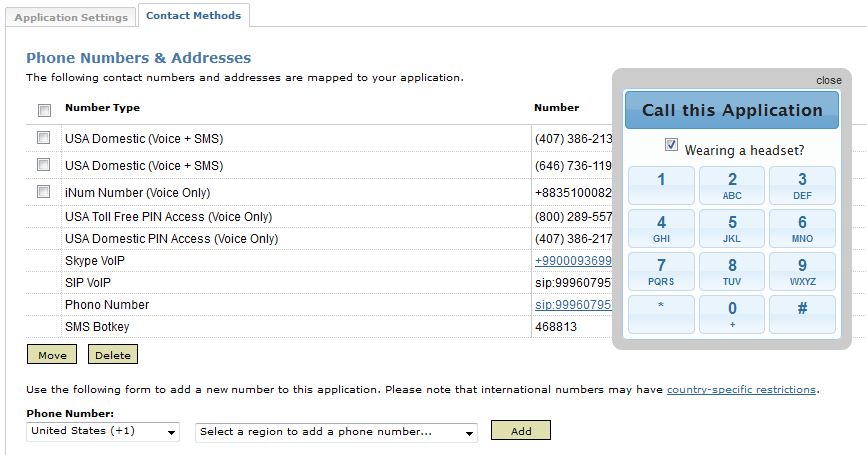
Web pages consist of HTML that is rendered into a visible page by a Web browser. Similarly, a voice application consists of XML (VoiceXML, CCXML, or CallXML) which becomes an interactive voice application when processed by the Voxeo Corporation VoiceCenter network. All you need to do is write the application's XML, map it to a phone number in the Voxeo Application Manager, and give it a call.

https://evolution.voxeo.com/

Sample vxml file

[sourcecode language="xml"]
<?xml version="1.0" encoding="UTF-8"?>
<vxml version="2.0" xmlns="http://www.w3.org/2001/vxml">

<form id="login">

<field name="phone_number" type="phone">
<prompt>Please say your complete phone number</prompt>
</field>

<field name="pin_code" type="digits">
<prompt>Please say your PIN code</prompt>
</field>

<block>
<submit next="http://www.example.com/servlet/login"
namelist="phone_number pin_code"/>
</block>

</form>
</vxml>
[/sourcecode]

Getting started with VoiceXML 2.0

Friday, June 29, 2012

Access Skype Functionality in Web Site

The Skype protocol allows users to deal with Skype related activities. The only condition is to have installed Skype  in client side. Getting a call, sending a IM, sending a voicemail and having a conference call  are still possible when the Skype username is known.

The following examples use 'echo123' demo user provided by Skype. Replace it with your friend's Skype username.

Call a Skype user

call Skype demo user

[sourcecode language="html"]
<a href="skype:echo123?call">call Skype demo user</a>
[/sourcecode]

Send a Skype IM message

Chat with Skype demo user

[sourcecode language="html"]
<a href="skype:echo123?chat">Chat with Skype demo user</a>
[/sourcecode]

Send a voicemail

Send voicemail to demo user

[sourcecode language="html"]
<a href="skype:echo123?voicemail">Send voicemail to demo user</a>
[/sourcecode]

Create a Skype conference call

conference call

[sourcecode language="html"]
<a href="skype:echo123;ANOTHER_USER?call">conference call</a>
[/sourcecode]

Wednesday, November 30, 2011

Friday, November 25, 2011

How to Make EXE Files Using Notepad

exe

Step 1:
Open Notepad on your computer. Notepad is located in the "Accessories" folder of the computer's "Program Files".

Step 2:
Hold down the "Alt" key and use the number pad to type in every 3-digit combinations from 000 to 999. After each 3-digit combination, release the "Alt" key.

Step 3:
Make notes on what keys produce what symbols. You can make a list of all of the 3-digit combinations or just a list of the ones you need. In Notepad, these combinations are the only way to get certain symbols.

Step 4:
Type the "exe" file for the program you want to create from the programming language into Notepad. Type the file in C++ programming language. Use the "Alt" and the 3-digit combinations to create symbols that do not appear on the keyboard but that you need in the program.

Step 5:
Save the file as a text file until you complete the "exe" program. Be aware that it may take a long time to type every line of code in the "exe" program.

Step 6:
Click on "File" and then choose "Save." In the extension drop-down menu, choose "exe." Name the file and click the "Save" button. Locate the file you saved and double-click it to run the "exe" file.

How to enable CORS in Laravel 5

https://www.youtube.com/watch?v=PozYTvmgcVE 1. Add middleware php artisan make:middleware Cors return $next($request) ->header('Acces...